7 Tricks That Make Any Photo Look Better
Plus 5 common editing mistakes to avoid
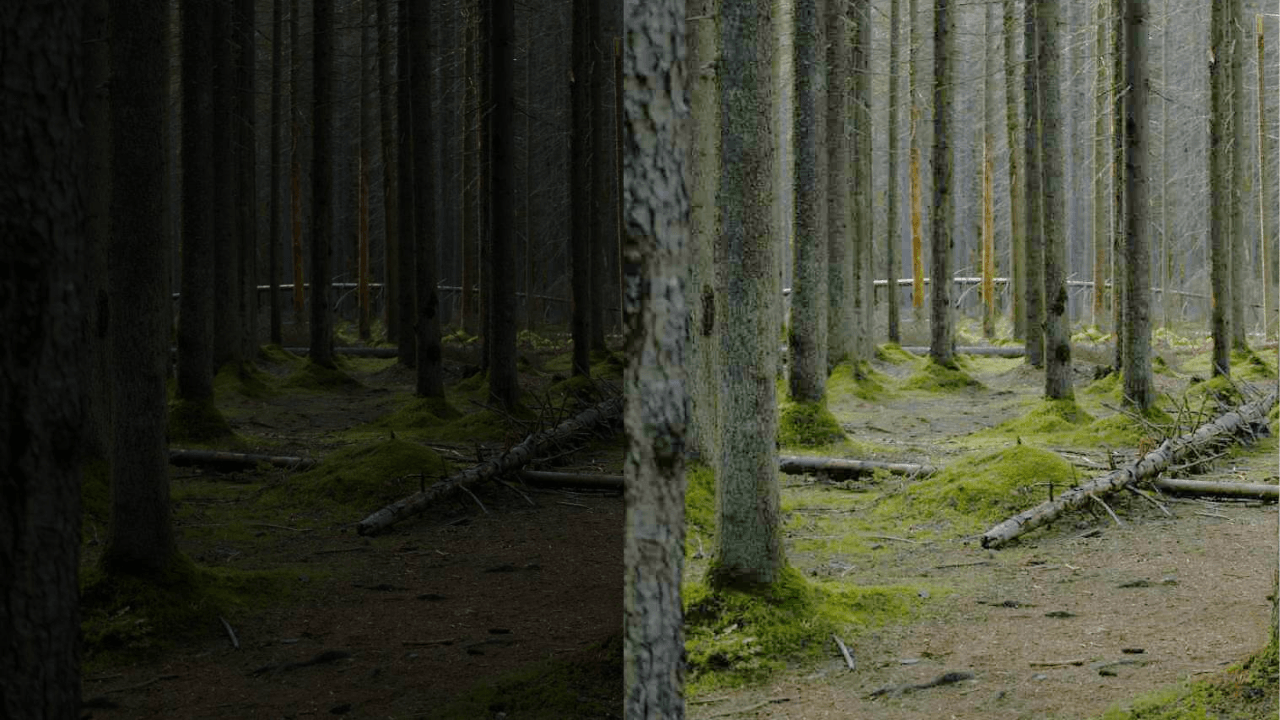
Adjust Brightness, Contrast & Lighting
Dark or flat photos can look unfinished, even if the photo itself is good. A small brightness and contrast adjustment can make the image clearer and easier to look at.
How to do it:
Open your image in Photopea. Go to Image > Adjustments > Brightness/Contrast. Increase the brightness slightly if the photo is too dark, then adjust the contrast a little to add depth. Keep the changes small so the photo still looks natural.
Add Subtle Sharpness
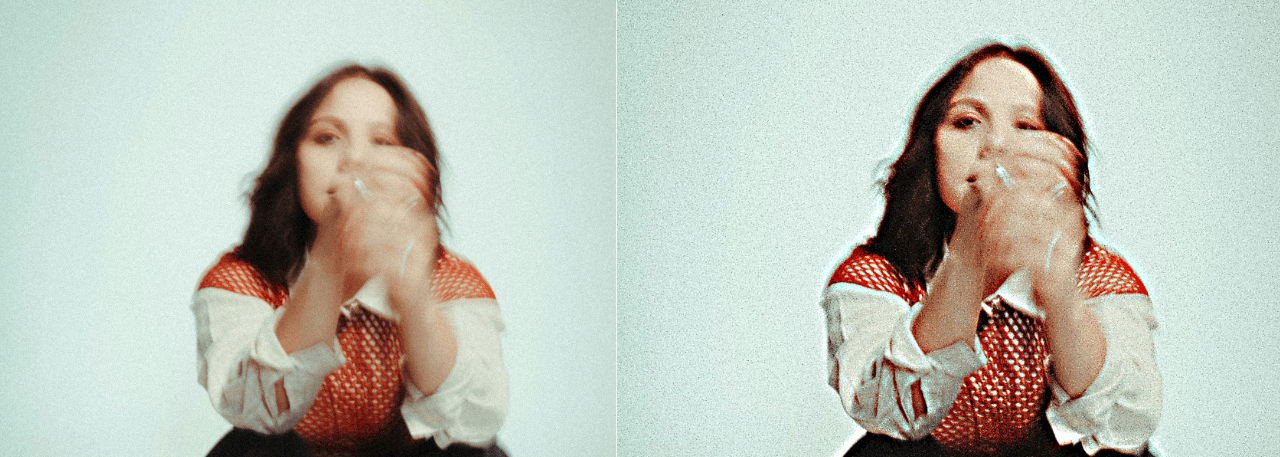
A little sharpening can make a photo look clearer, especially if it looks slightly soft or blurry. The key is to use it lightly, because too much sharpening can make the image look rough.
How to do it:
Open your image and zoom in a little. Go to Filter > Sharpen and apply a small amount of sharpening. Check the edges of the photo after applying it. If the edges look too harsh or unnatural, undo it and use less.
Improve Colors
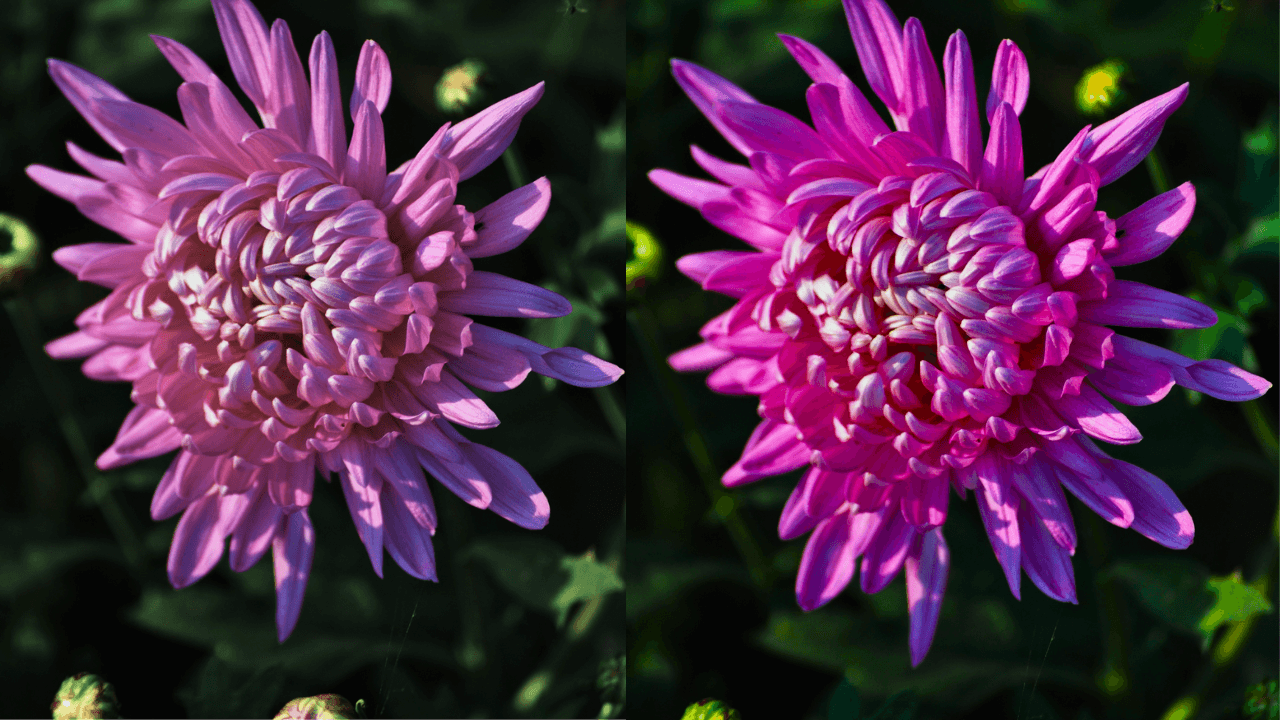
Improving the colors can make a photo look more alive and polished. This works especially well when the image looks dull, faded, or washed out.
How to do it:
Go to Image > Adjustments > Hue/Saturation. Increase the saturation slightly to make the colors stronger. Do not push it too far, because the photo can quickly start looking fake. Check the full image before saving.
Crop for Better Composition
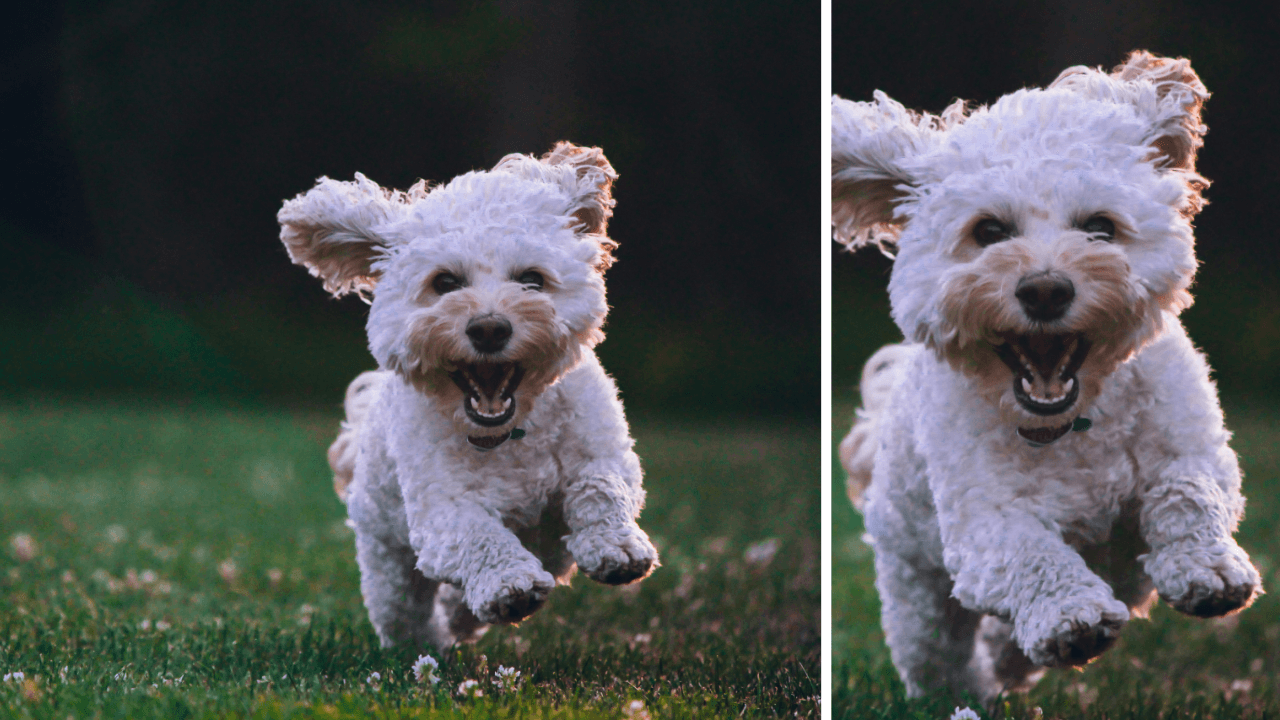
Cropping helps remove empty space, messy edges, or anything that pulls attention away from the main subject. A simple crop can make the photo look cleaner and more focused.
How to do it:
Select the Crop Tool from the toolbar. Drag the crop box around the part of the image you want to keep. Remove extra space or distracting areas around the edges, then press Enter to apply the crop.
Straighten the Image
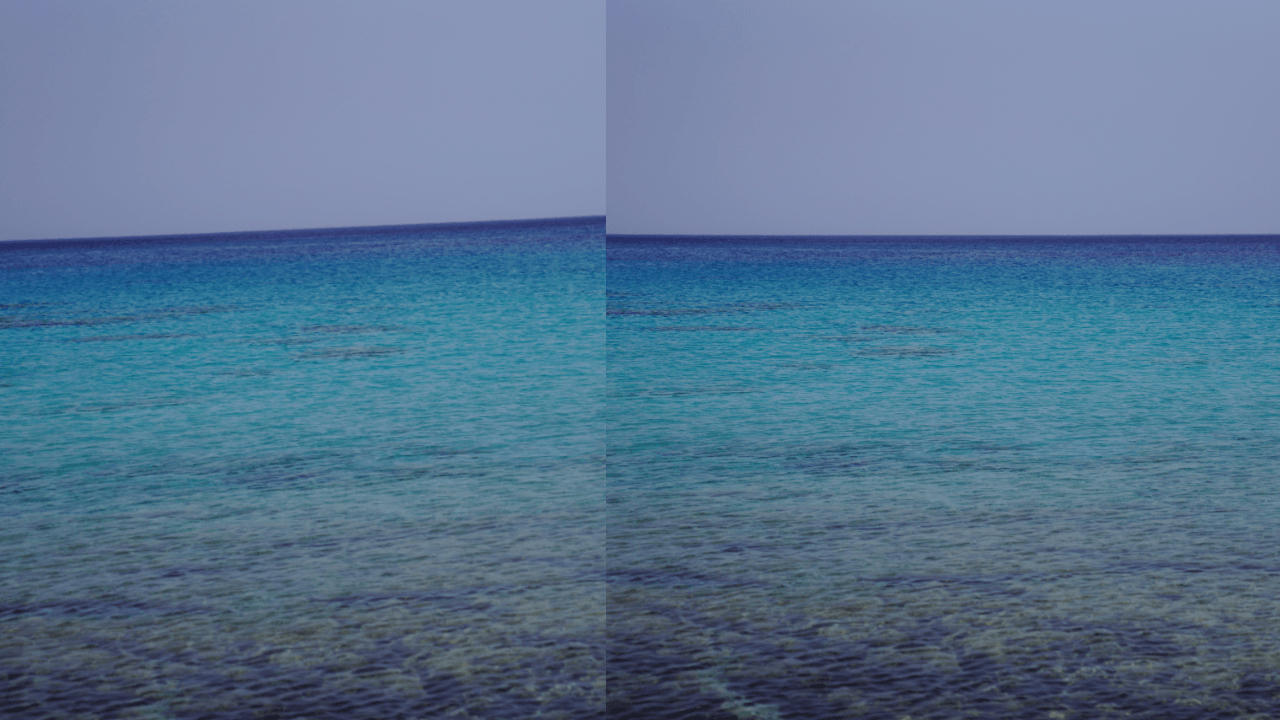
A crooked photo can look less professional, even if the rest of the image is good. Straightening helps the photo feel more balanced and clean.
How to do it:
Look for lines that should be straight, like a horizon, wall, table, or building. Go to Edit > Free Transform and rotate the image slightly until it looks straight. Confirm the change, then crop away any empty edges left after rotating.
Reduce Noise / Grain
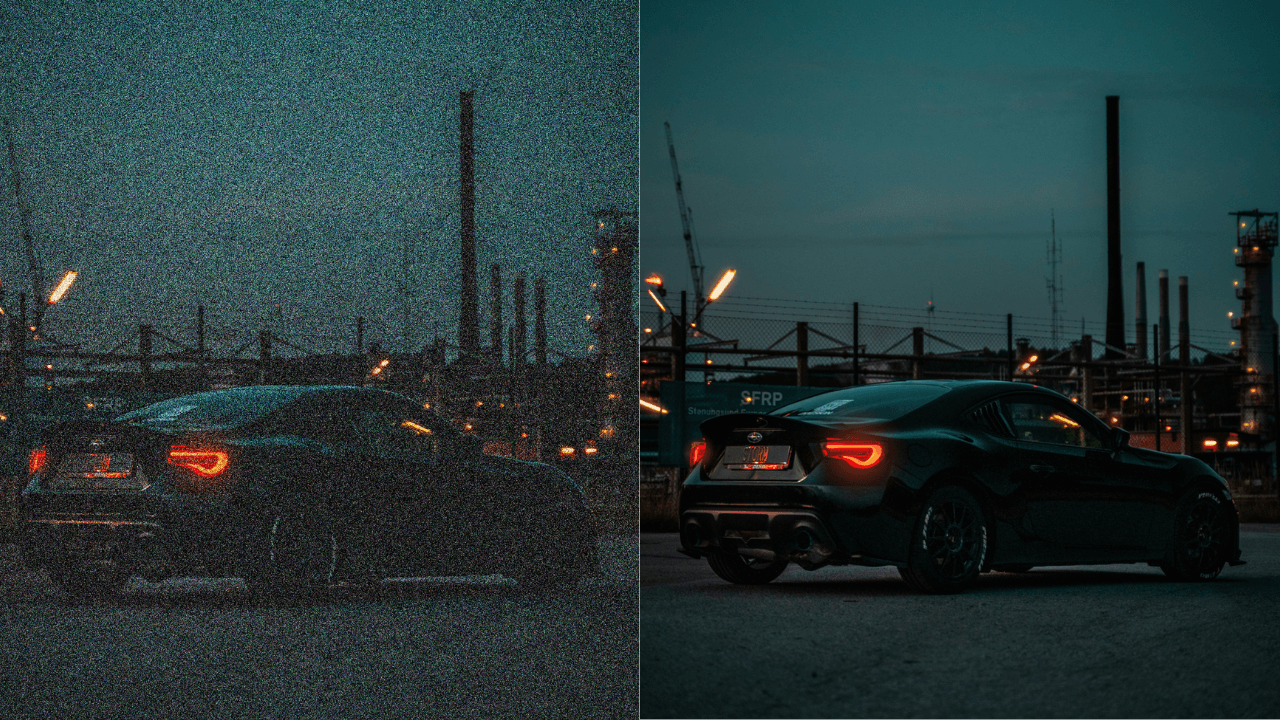
Noise or grain can make a photo look rough, especially in darker areas. Reducing it slightly can make the image look cleaner, but too much can make the photo blurry.
How to do it:
Zoom in and check the dark areas of the photo. Go to Filter > Noise > Reduce Noise if available. Apply a small amount and check the result. Keep it light so the photo stays sharp and does not become too soft.
Remove Distractions
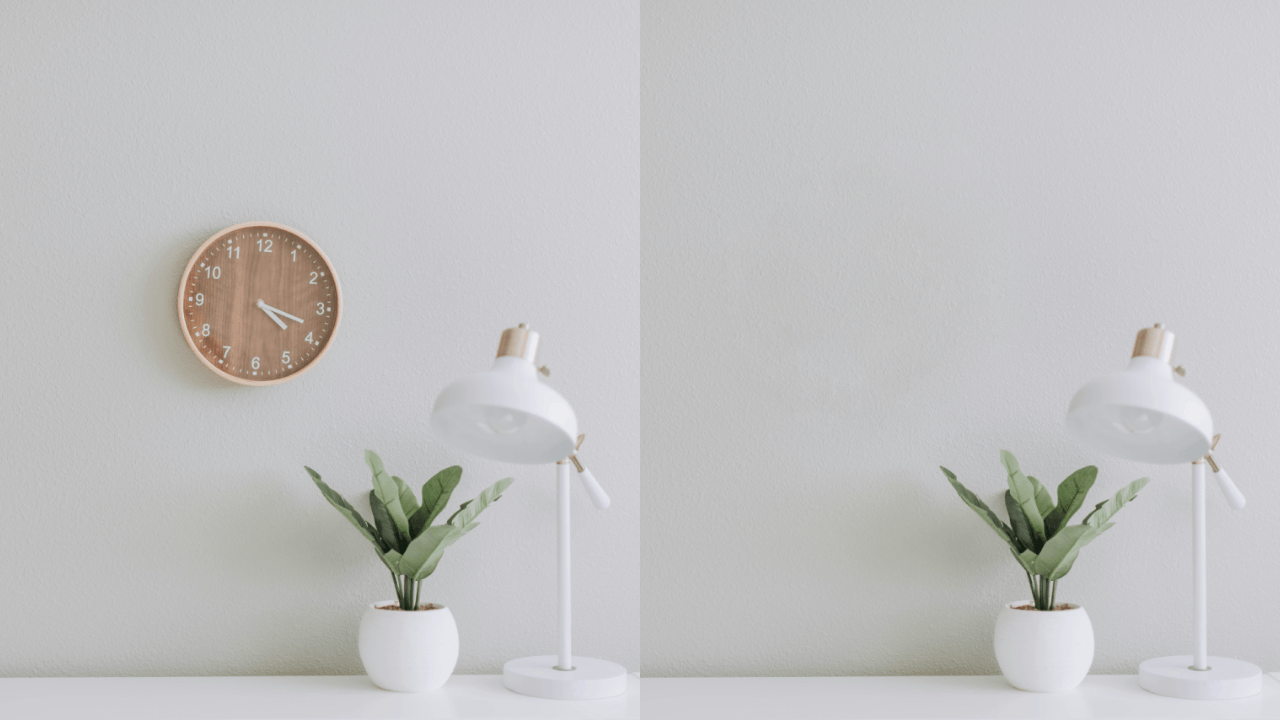
Small distractions in the background can take attention away from the main subject. Removing tiny marks, spots, or unwanted objects can make the photo look cleaner.
How to do it:
Select the Spot Healing Brush Tool from the toolbar. Make the brush slightly bigger than the object you want to remove. Paint over small distractions one at a time. For best results, work slowly instead of trying to remove a large area at once.
5 Common Editing Mistakes to Avoid
Over-sharpening
Too much sharpening creates harsh edges and noise.
Fix: Apply subtly and zoom out.
Over-brightening & Excessive Contrast
Pushing brightness or contrast too far destroys details.
Fix: Make small, balanced adjustments.
Over-saturation
Unrealistic colors look artificial.
Fix: Increase gradually.
Editing Without Checking Zoom Levels
Details and overall look may conflict.
Fix: Check both zoomed-in and zoomed-out views.
Over-editing
Too many adjustments can make photos look unnatural.
Fix: Keep edits subtle and realistic.
Want to Apply These Tricks Yourself?
You can use Photopea — a powerful, free online photo editor that works directly in your browser.
Final Thought
Even small edits can dramatically improve a photo when applied carefully.
Consistency beats perfection.
Need Fonts, Graphics, and Templates for Your Designs?
Click below to see my recommended design resource for fonts, graphics, templates, and creative assets you can use in your own projects.
Privacy Policy | About | Contact | Home | Affiliate Disclosure
© Copyright 2026 - All rights reserved
Create Your Free Account